Set Up Automation
This guide walks you through setting up an automation in Apple's Shortcuts app, so Parkwärter can automatically check whether you need a parking disc — every time you get out of your car.
Install Apple's Shortcuts app from the App Store if it isn't already installed.
Open Shortcuts and switch to the Automation tab at the bottom of the screen.
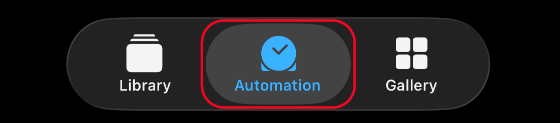
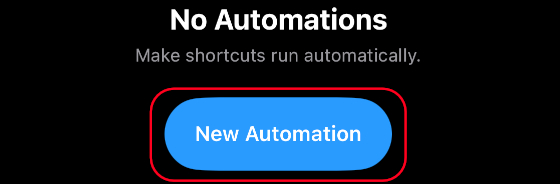
Tap "New Automation" on the screen.
If you already have automations, tap the plus (+) button in the top-right corner instead.
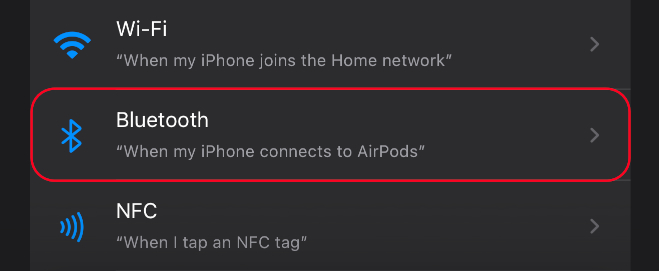
Select "Bluetooth" as the trigger.
If you use CarPlay, you can choose it as the trigger instead of Bluetooth. You can also set up an additional CarPlay automation the same way as the Bluetooth one.
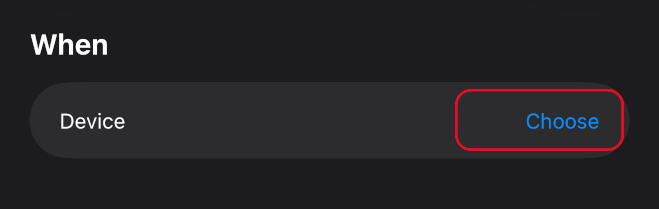
Tap "Device" and select your car (or any car devices you use). Then confirm with "Done" or the checkmark in the top-right corner.
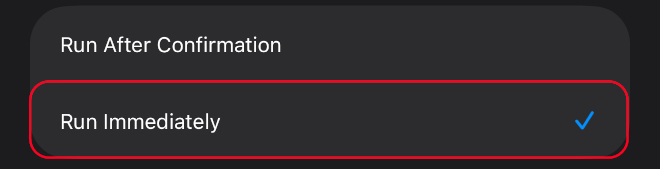
Scroll down and enable "Run Immediately" so the automation can run without asking every time.
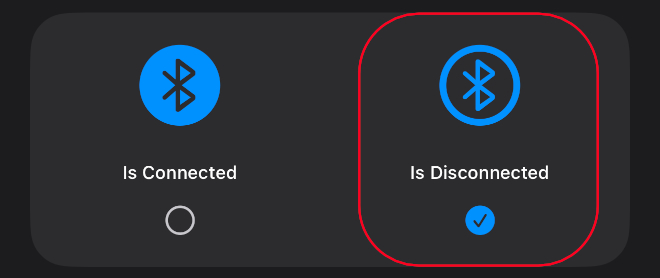
Turn on "When disconnected" and turn off "When connected".
Tap "Next" in the top-right corner to move to the actions screen.
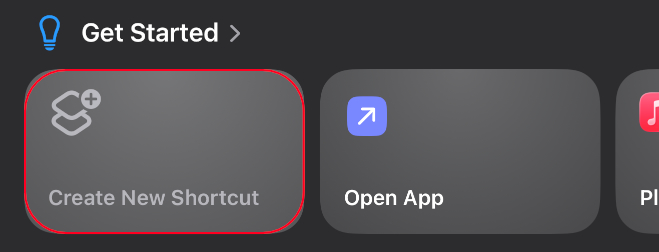
Tap "New Blank Automation" or "Create new Shortcut" to add what should happen when the automation runs.
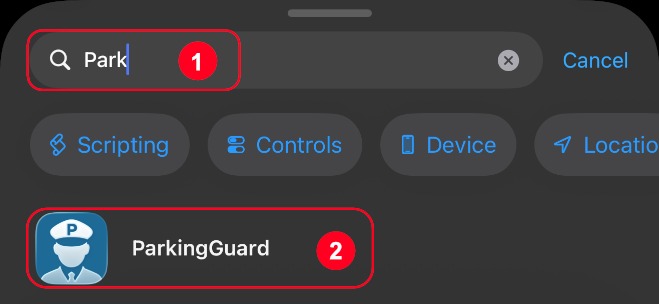
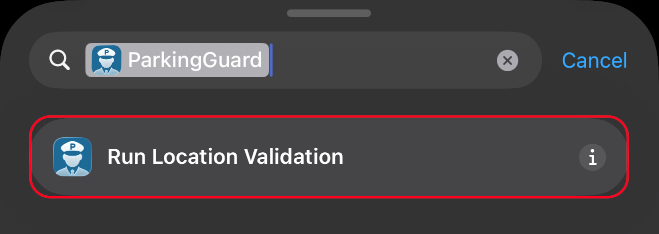
In the search bar at the bottom, type "Parkwärter" and pick the app from the results.
From the Parkwärter actions, choose "Run location validation".
Finally, tap "Done" or the checkmark in the top-right corner to save your automation.
Done!
Your automation is now set up. From now on, Parkwärter will automatically check whether you need a parking disc whenever the Bluetooth connection to your car is disconnected.
Tip: Make sure Bluetooth is enabled on your iPhone and that your car appears in the Bluetooth device list. The automation will only trigger when the connection to one of the selected devices is disconnected.